
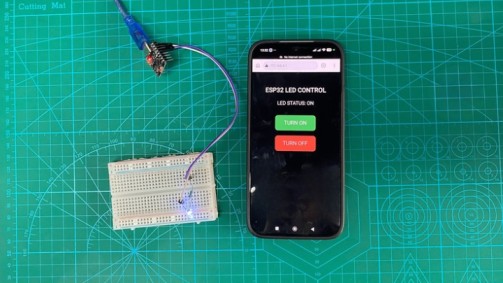
Want to control an LED from your phone without using a remote or Bluetooth module? 🔥⚡️ This ESP32 WiFi LED Control project lets you switch an LED on and off through a simple web page. The ESP32 creates its own WiFi network, allowing your phone or laptop to connect directly. Once connected, you can open the control page and manage the LED using two buttons.
Unlike basic LED projects that rely on physical switches, this setup introduces wireless control through a browser. The ESP32 acts as both the WiFi access point and the web server. It handles incoming commands while controlling the LED connected to GPIO4. You do not need a separate router or an active internet connection to test this project.
The web page also includes a status display that tells users whether the LED is ON or OFF. A green button turns the light on, while a red button switches it off. This makes the interface easy to understand, even for someone using the system for the first time. The project provides a starting point for learning how small devices can communicate through local networks.
Why Build?
The ESP32 WiFi LED Control project helps beginners explore wireless control using an everyday device. Instead of adding more physical switches, you can send commands through a smartphone or computer. This introduces a useful concept for smart home projects, remote lighting, and connected electronics. It also shows how a single ESP32 board can manage both network access and hardware output.
Another reason to build this project is to understand basic web-based control. Many beginners start with LEDs because their behavior is easy to observe. Adding a web page gives that simple circuit a new purpose. You can see how a button on a screen causes an action on real hardware, helping connect web development with electronics.
This setup also makes a good introduction to local network control. Since the ESP32 creates its own access point, you can test the project without relying on a home router. This is useful during classroom demonstrations, school exhibits, or small electronics workshops. It also helps beginners understand the difference between a local WiFi connection and internet access.
The project offers room for future improvements. Once you understand how the web commands work, you can use a similar approach for other electronic outputs. You can add more LEDs, adjust brightness, monitor sensors, or control suitable driver modules. These upgrades make the project a useful foundation for larger ESP32 applications.
What You’ll Learn
By building this ESP32 WiFi LED Control project, you’ll learn:
- How an ESP32 can create its own WiFi access point.
- How to connect a smartphone or laptop to an ESP32 network.
- How an ESP32 can host a local web page.
- How
WiFi.hhandles wireless network features. - How
WebServer.hprocesses browser requests. - How HTML creates buttons and displays LED status.
- How CSS improves the appearance of a control page.
- How HTTP POST requests send ON and OFF commands.
- How GPIO4 controls an external LED.
- How
digitalWrite()changes the LED output. - How a Boolean variable tracks the current LED state.
- How the Serial Monitor displays the WiFi name and IP address.
- How local web control can support future smart device projects.
What You’ll Need
Sample Code
The following sketch creates a local web page with ON and OFF buttons. It also shows the current LED status and processes commands sent through the browser. You can change the WiFi name and password before uploading if you prefer your own network details.
#include <WiFi.h>
#include <WebServer.h>

// LED PIN
#define LED_PIN 4

// ESP32 WIFI ACCESS POINT
const char* ssid = "ESP32-LED-CONTROL";
const char* password = "12345678";

WebServer server(80);

bool ledState = false;

// WEB PAGE
String webpage() {
  String html = R"rawliteral(
<!DOCTYPE html>
<html>
<head>
<meta name="viewport"
content="width=device-width, initial-scale=1">
<title>ESP32 LED Control</title>
<style>
body {
  font-family: Arial;
  text-align: center;
  background: #121212;
  color: white;
  padding: 40px 15px;
}
h1 {
  font-size: 28px;
}
button {
  width: 180px;
  padding: 20px;
  font-size: 24px;
  border: none;
  border-radius: 12px;
  margin: 12px;
  cursor: pointer;
}
.on { background: #27ae60; color: white; }
.off { background: #e74c3c; color: white; }
.status {
  font-size: 22px;
  margin: 30px;
}
</style>
</head>
<body>

<h1>ESP32 LED CONTROL</h1>

<div class="status">
LED STATUS: %STATUS%
</div>

<form action="/on" method="POST">
<button class="on">TURN ON</button>
</form>

<form action="/off" method="POST">
<button class="off">TURN OFF</button>
</form>

</body>
</html>
)rawliteral";

  html.replace("%STATUS%",
               ledState ? "ON" : "OFF");
  return html;
}

// MAIN PAGE
void handleRoot() {
  server.send(200, "text/html", webpage());
}

// LED ON
void handleOn() {
  ledState = true;
  digitalWrite(LED_PIN, HIGH);

  Serial.println("LED ON");

  server.sendHeader("Location", "/");
  server.send(303);
}

// LED OFF
void handleOff() {
  ledState = false;
  digitalWrite(LED_PIN, LOW);

  Serial.println("LED OFF");

  server.sendHeader("Location", "/");
  server.send(303);
}

void setup() {
  Serial.begin(115200);

  pinMode(LED_PIN, OUTPUT);
  digitalWrite(LED_PIN, LOW);

  WiFi.mode(WIFI_AP);
  WiFi.softAP(ssid, password);

  Serial.println("ESP32 WIFI READY");
  Serial.print("WIFI NAME: ");
  Serial.println(ssid);

  Serial.print("IP ADDRESS: ");
  Serial.println(WiFi.softAPIP());

  server.on("/", HTTP_GET, handleRoot);
  server.on("/on", HTTP_POST, handleOn);
  server.on("/off", HTTP_POST, handleOff);

  server.begin();

  Serial.println("WEB SERVER STARTED");
}

void loop() {
  server.handleClient();
}
How It Works
When the ESP32 starts, it prepares GPIO4 as an output and keeps the LED turned off. Next, the board enters WiFi access point mode through WiFi.mode(WIFI_AP). The WiFi.softAP() function creates the wireless network using the name and password defined in the sketch. Once the access point starts, the ESP32 prints its network details through the Serial Monitor.
To test the project, open your phone’s WiFi settings and look for ESP32-LED-CONTROL. Connect using the password 12345678. Your phone may report that the network has no internet access, which is normal for this setup. Stay connected because the ESP32 only needs a local WiFi link to receive commands.
After connecting, open a browser and enter the ESP32 IP address. The default access point address is usually 192.168.4.1, but you should confirm the address in the Serial Monitor. The browser then requests the main page from the ESP32. In response, the server sends the HTML page containing the status label and control buttons.
The web interface uses HTML to organize the content and CSS to control its appearance. The dark background makes the controls easier to see, while the green and red buttons clearly represent their actions. The page also includes a status placeholder named %STATUS%. Before sending the page, the ESP32 replaces that placeholder with the current LED state.
When you press TURN ON, the browser sends a POST request to the /on route. The ESP32 processes that request and changes ledState to true. It then sends a HIGH signal to GPIO4, allowing the external LED to light. The Serial Monitor also prints LED ON to confirm the command.
Pressing TURN OFF sends another POST request, this time to the /off route. The ESP32 changes the stored state to false and sets GPIO4 LOW. This stops the current through the LED, causing it to turn off. After each command, the browser returns to the main page and shows the updated status.
The server.handleClient() function keeps the web server responsive inside the main loop. It checks for incoming browser requests and runs the matching function when a request arrives. This lets users control the LED repeatedly without restarting the board. The current web page updates after each button press rather than using live background updates.
If the LED does not respond, check the GPIO4 connection and confirm that the resistor and LED are wired correctly. A blank web page may mean the phone is not connected to the ESP32 network. You should also verify that the sketch uploaded successfully and that the Serial Monitor shows the web server startup message.
Applications and Extensions
The ESP32 WiFi LED Control project can serve as a starting point for smart lighting experiments. A single LED may look simple, but the same control idea can support several light outputs. By adding more GPIO pins and web buttons, you can create a page that controls multiple LEDs separately. This can help students understand how a web interface manages different electronic devices.
Another possible application is an LED status panel. You can assign different LEDs to show whether a system is active, idle, or experiencing an error. A local control page can then allow users to change or test those indicators. This idea can support robotics projects, small test stations, and electronics demonstrations.
Brightness control is another useful upgrade. Instead of using only HIGH and LOW signals, you can use ESP32 PWM output to adjust LED brightness. A slider on the web page can let users increase or decrease the light level. This adds another type of web input and introduces analog-like control using digital signals.
For a more colorful project, replace the single LED with a common RGB LED. Separate GPIO outputs can control the red, green, and blue channels through suitable resistors. A web page can then offer color choices or brightness controls for each channel. This turns the simple on/off example into a small WiFi-controlled mood light.
You can also add sensor readings to the interface. For example, a temperature sensor can send values to the ESP32, and the web page can show those readings. Another button can control a suitable relay driver for low-voltage devices. Make sure larger loads use the correct driver and external power source rather than connecting directly to GPIO pins.
For a finished build, place the ESP32 and LED circuit inside a small enclosure. Keep the USB port accessible and mount the LED where users can easily see it. You can also customize the web page with a project name, better icons, or additional controls. If other people will use the network, change the default password and limit access to trusted users.
This project shows how a small ESP32 board can connect browser input with physical hardware. Once the LED works through the local web page, you have a practical base for more advanced wireless projects.
Watch the Full Demo Video
Here’s the ESP32 WiFi LED Control.