
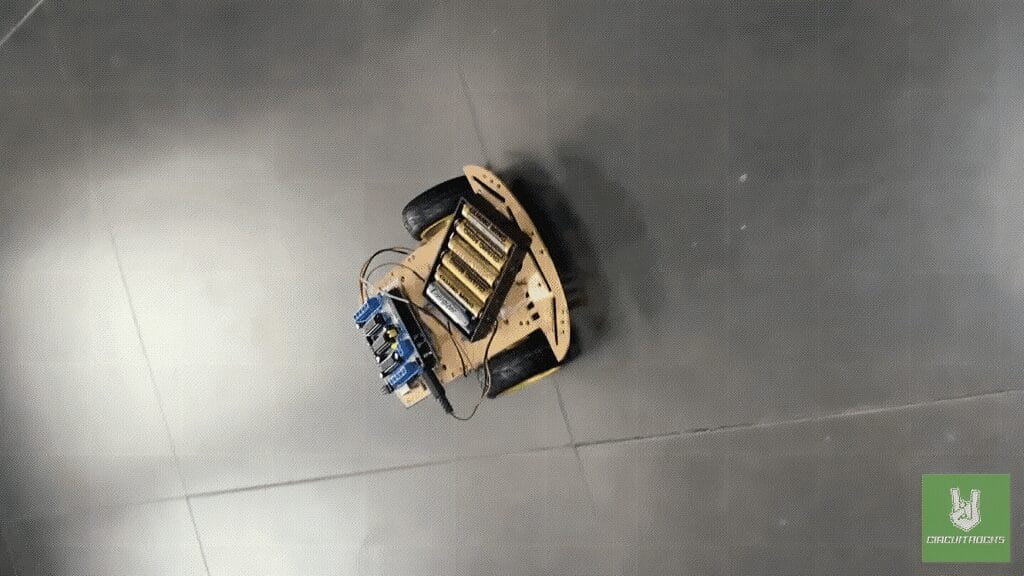
This tutorial gets you started with the 2WD Robot Chassis Kit, a good first robotics project. It’s a simple mobile robot that drives forward, reverses, and stops in a loop. Nothing fancy, but it’s a solid way to learn how motor control works.
The chassis kit ships with an instruction manual, so putting it together is straightforward. I’ll add a few tips of my own to smooth out the rough spots, from tidying up the wiring to feeding it better power. The mounting holes are pre-cut, so the motors and battery holder drop right in. Solder the motor connections instead of twisting them; the wiring stays put that way. Want more power? Swap in a 6xAA battery holder and the robot runs stronger. New to robotics? You’ll still be able to build this one.
Once it’s together, start playing with how it moves: run it along a track, dodge obstacles, or react to sensor input. This build is your base to change and improve however you want. Try building your own 2WD robot, follow along with my tutorial, and see what you can create!
Components
Connections
Notes:
- Install the AFMotor Library (if not already installed):
- Go to Sketch → Include Library → Manage Libraries
- Search for AFMotor and install it.
Codes:
#include <AFMotor.h> AF_DCMotor motor1(3, MOTOR12_64KHZ); // Left Motor on M3
AF_DCMotor motor2(4, MOTOR12_64KHZ); // Right Motor on M4 void setup() { Serial.begin(9600); Serial.println("Starting Motor Test"); motor1.setSpeed(200); // Speed (0-255) motor2.setSpeed(200);
} void loop() { Serial.println("Moving Forward"); motor1.run(FORWARD); motor2.run(FORWARD); delay(3000); Serial.println("Moving Backward"); motor1.run(BACKWARD); motor2.run(BACKWARD); delay(3000); Serial.println("Stopping"); motor1.run(RELEASE); motor2.run(RELEASE); delay(3000);
}
Once the upload is complete:
- Open the Serial Monitor (Tools → Serial Monitor) and set the baud rate to 9600.
- The system will start running with the following sequence:
- Moves forward for 3 seconds
- Moves backward for 3 seconds
- Stops for 3 seconds
- Repeats the cycle continuously
Troubleshooting:
- Motors not running? Check the power supply and motor connections.
- Serial Monitor not showing text? Ensure the baud rate is set to 9600.
- Motors running in the wrong direction? Swap the motor wires or modify
FORWARDtoBACKWARD.
QUICK LINK
Frequently Asked Questions
What does this Getting Started with 2WD Motor Chassis: A Beginner’s Guide tutorial cover?
This tutorial is to help you get started with the 2WD Robot Chassis Kit .
What's the working voltage of the Getting Started with 2WD Motor Chassis: A Beginner’s Guide?
Check the Sample Code section for the exact pinout — most maker-grade sensors run on 3.3V or 5V. Wire VCC to the matching rail, GND common with your MCU, data to a digital or analog pin.
Why does the Getting Started with 2WD Motor Chassis: A Beginner’s Guide read garbage or saturated values?
Three usual causes: wrong voltage rail, missing pull-up resistor on I2C lines (4.7k–10k to VCC), or a floating data pin. Double-check wiring against the diagram, then probe with a multimeter.